
How to Upload your Template
Upload a template to make it available in SchemeFlow.
Uploading changes to an existing template
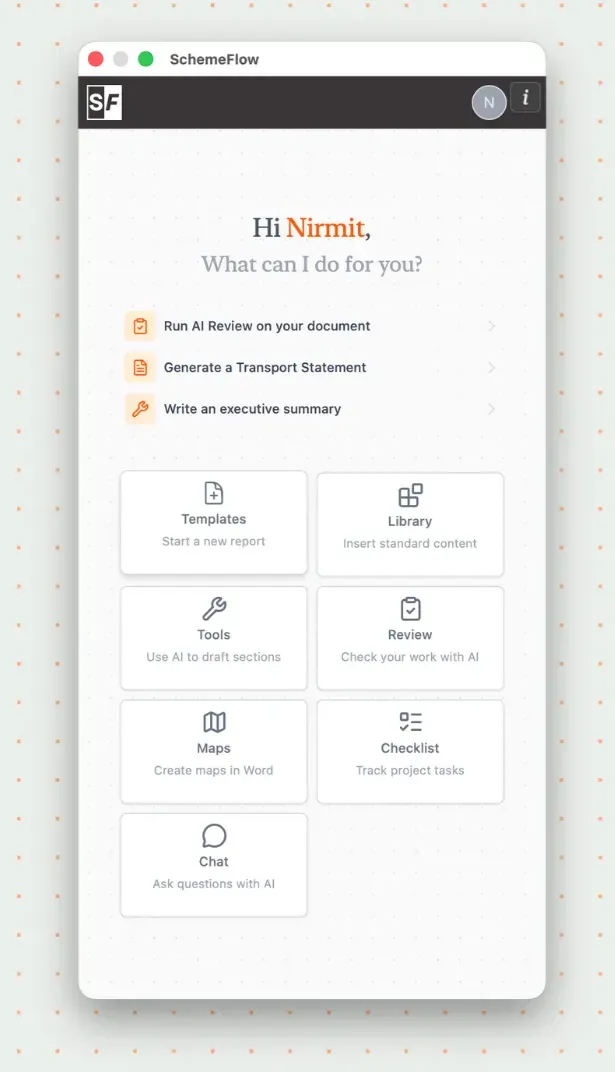
Open SchemeFlow. You should see the Home page by default. If not, click the back button in the top-left corner.
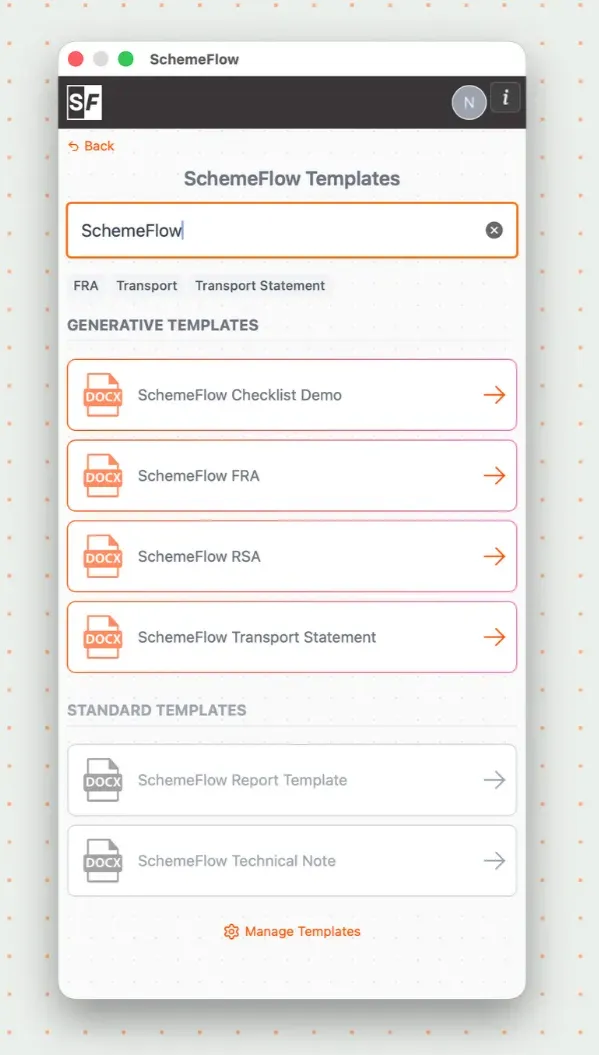
Go to the Templates page.
Make sure the Word document you want to save is currently open and the SchemeFlow sidebar is visible.
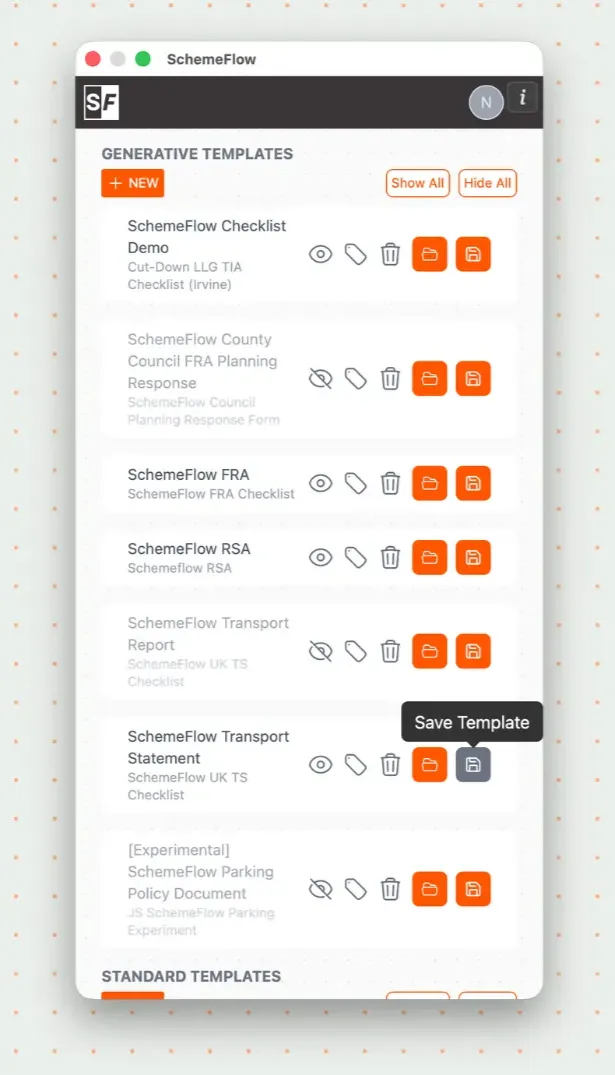
Find the template you have made changes to, hover over it to reveal the ⋮ (three dots) menu, and click Upload new version. This saves the open document as a new version of that template.
Uploading a new template
Make sure the Word document you want to upload is open with the SchemeFlow sidebar visible.
Go to the Templates page and click New.
Give the template a Name (and, optionally, a default checklist), then click Create from document.
Notes
WARNING
Always confirm the correct document is open before saving or uploading a template. Editing or removing SchemeFlow tags or content controls may break template functionality.