
Isochrones
Create and edit isochrones, including times/distances and styling.
Steps
- Click the cog icon to the right of the isochrones to open the isochrone settings.
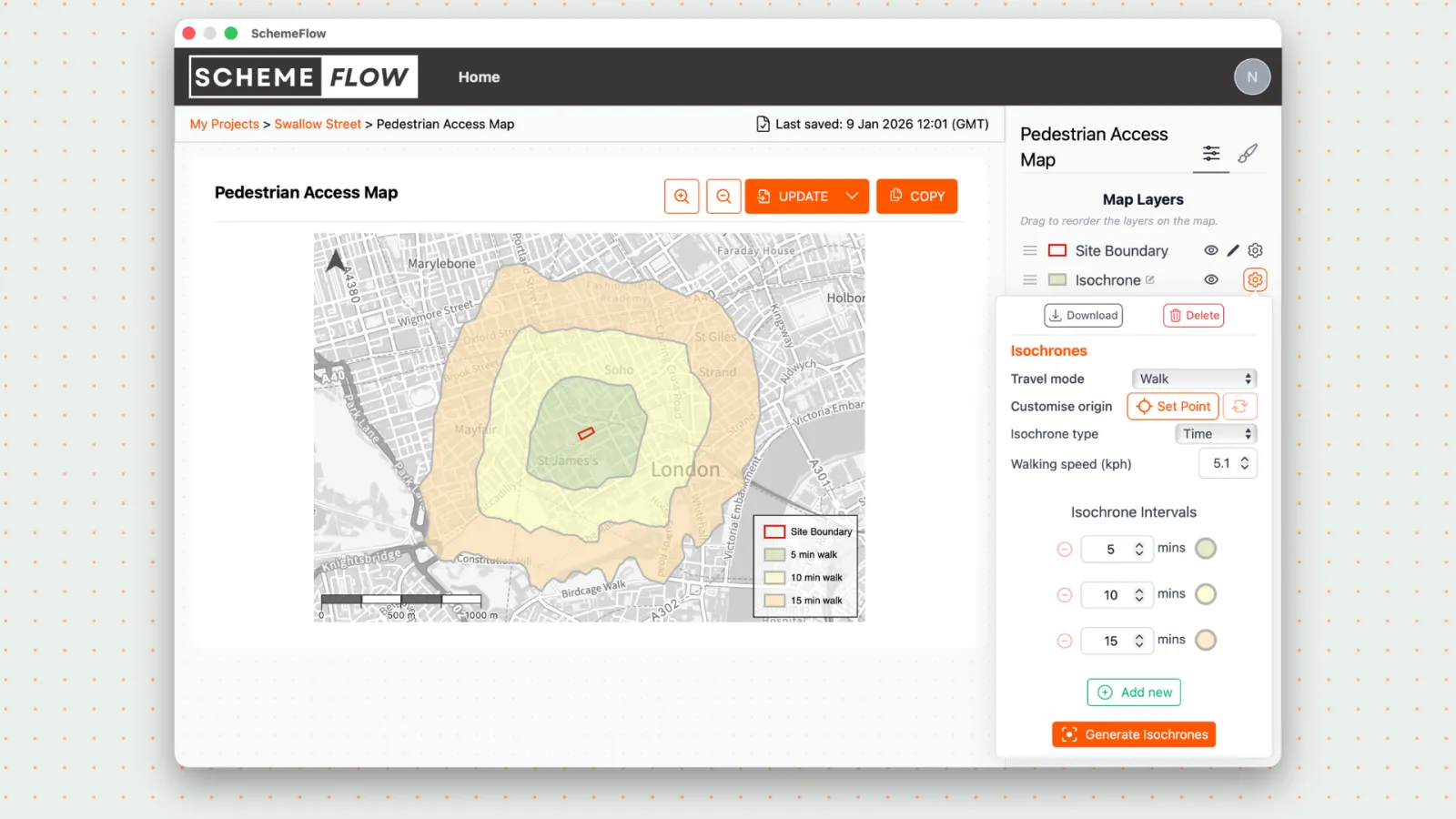
From the settings panel, update the isochrone options:
- Travel mode (e.g. walking, cycling, driving)
- Origin point
- By default, isochrones are generated from the center of the site
- You can set a new point if needed
- Type (time or distance)
- Time or distance values
- Walking speed
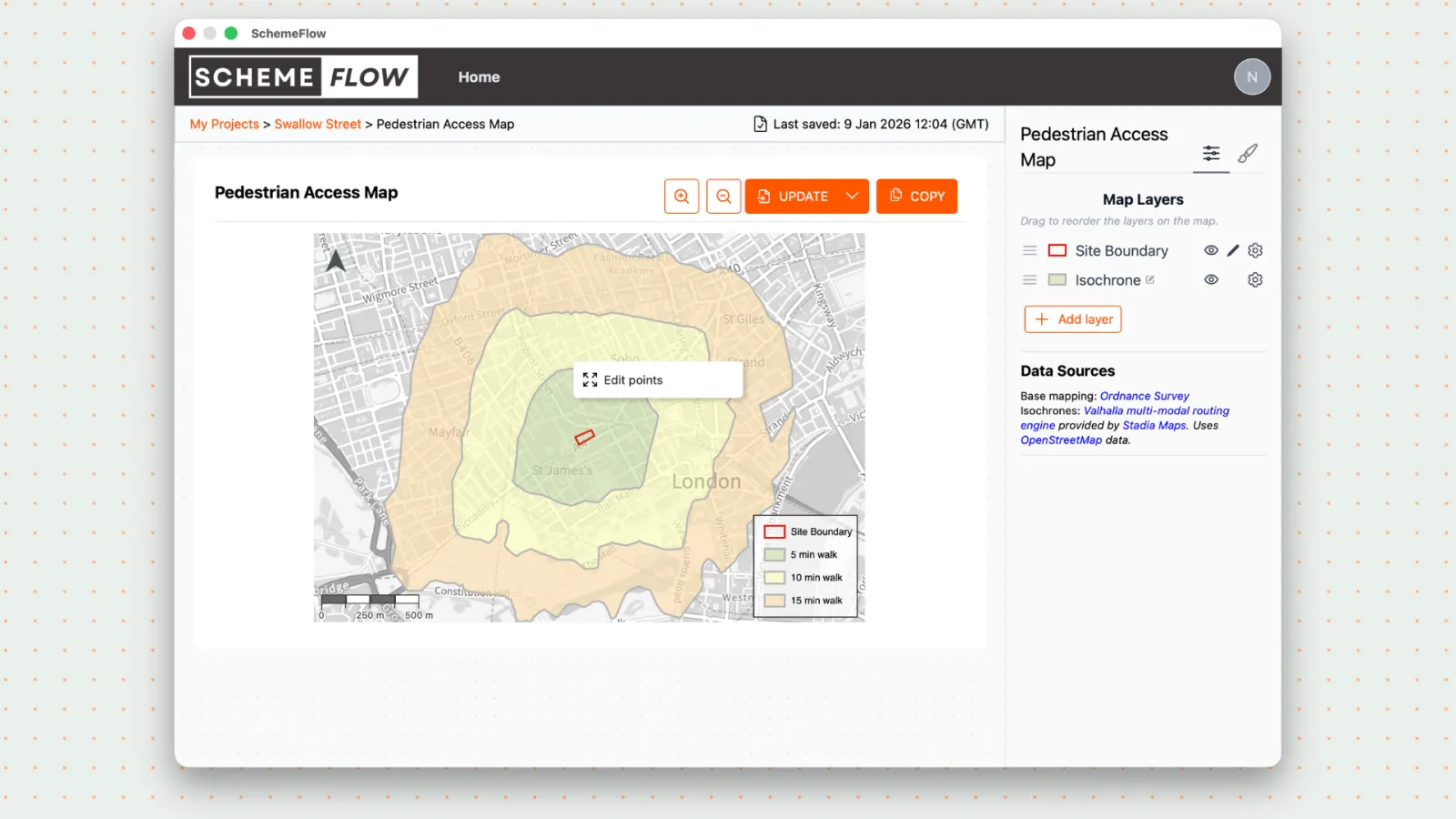
To fine-tune an isochrone, right-click directly on the isochrone on the map and adjust it as required.
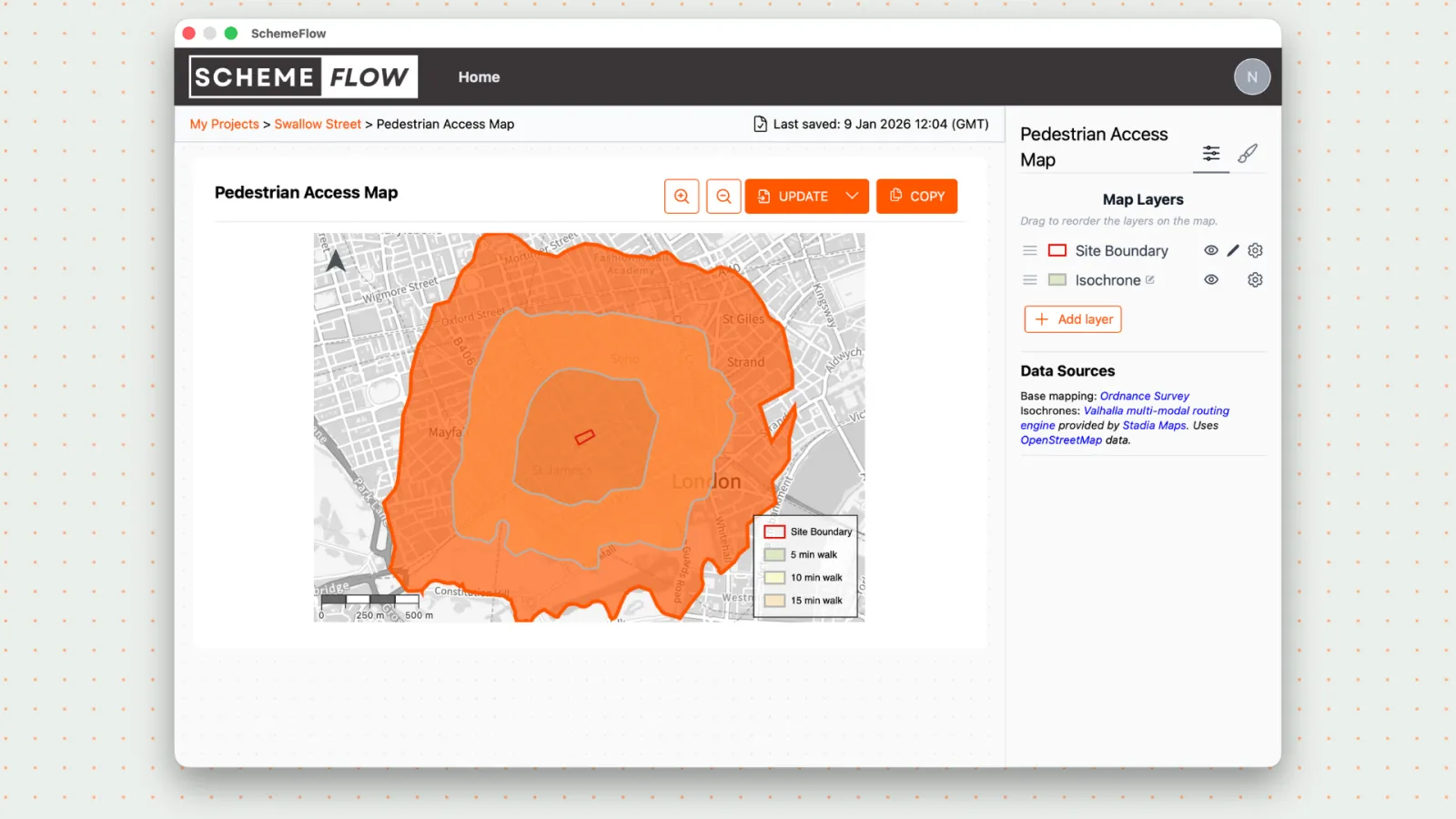
- To save the isochrone styling, click the Paint Brush icon and select Company Styles to save it as the default isochrone style.
Notes
- Changes made in the settings panel affect how isochrones are generated.
- Right-click editing is useful for quick, manual adjustments on the map.