
Line
Draw lines on the map to represent routes, paths, or connections.
Steps
- Click Add Layer, then select Lines. The line layer will be added to the map.
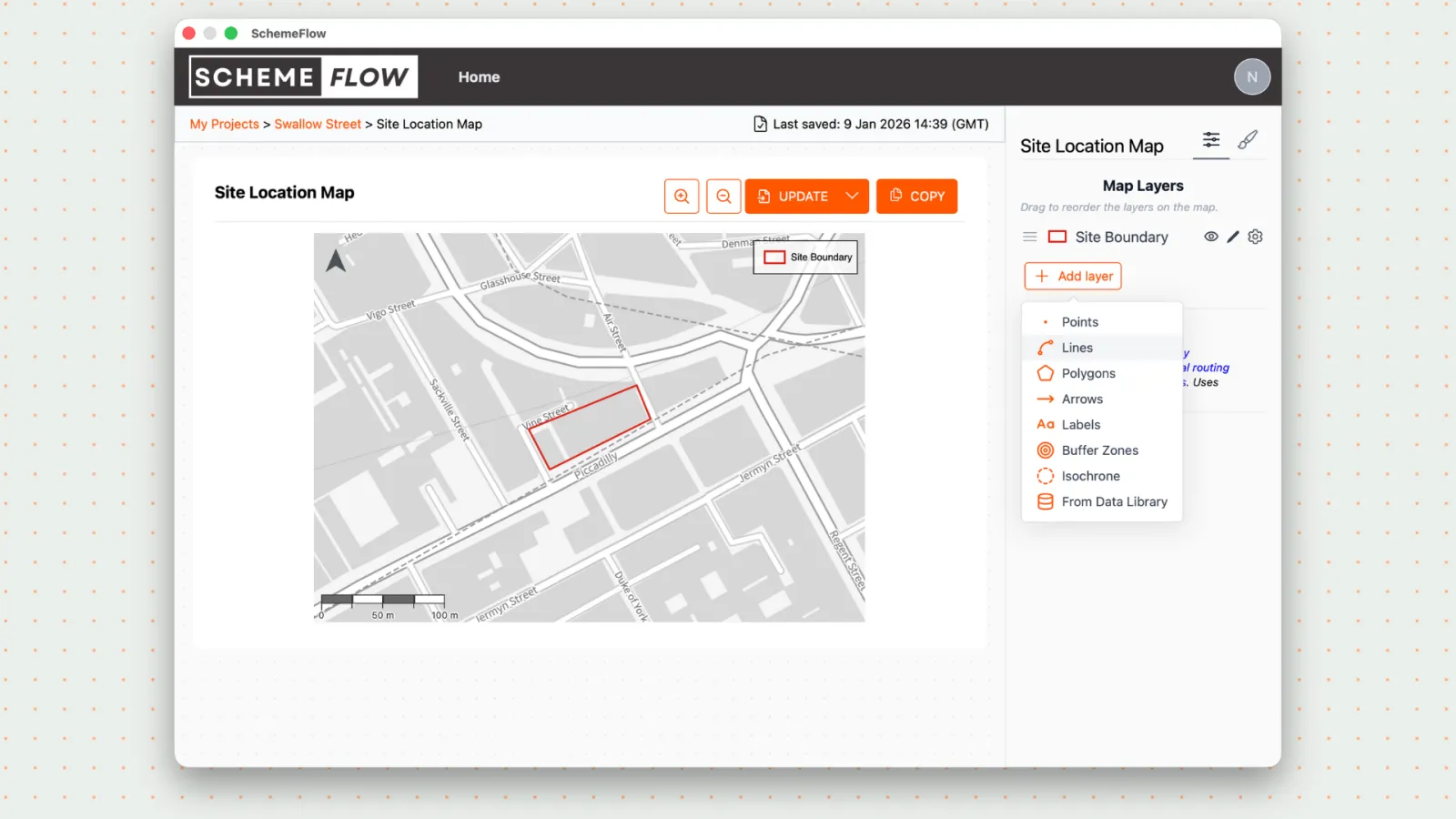
Rename the layer by clicking the layer name and entering a new name.
Click the Pencil icon to start drawing lines on the map.
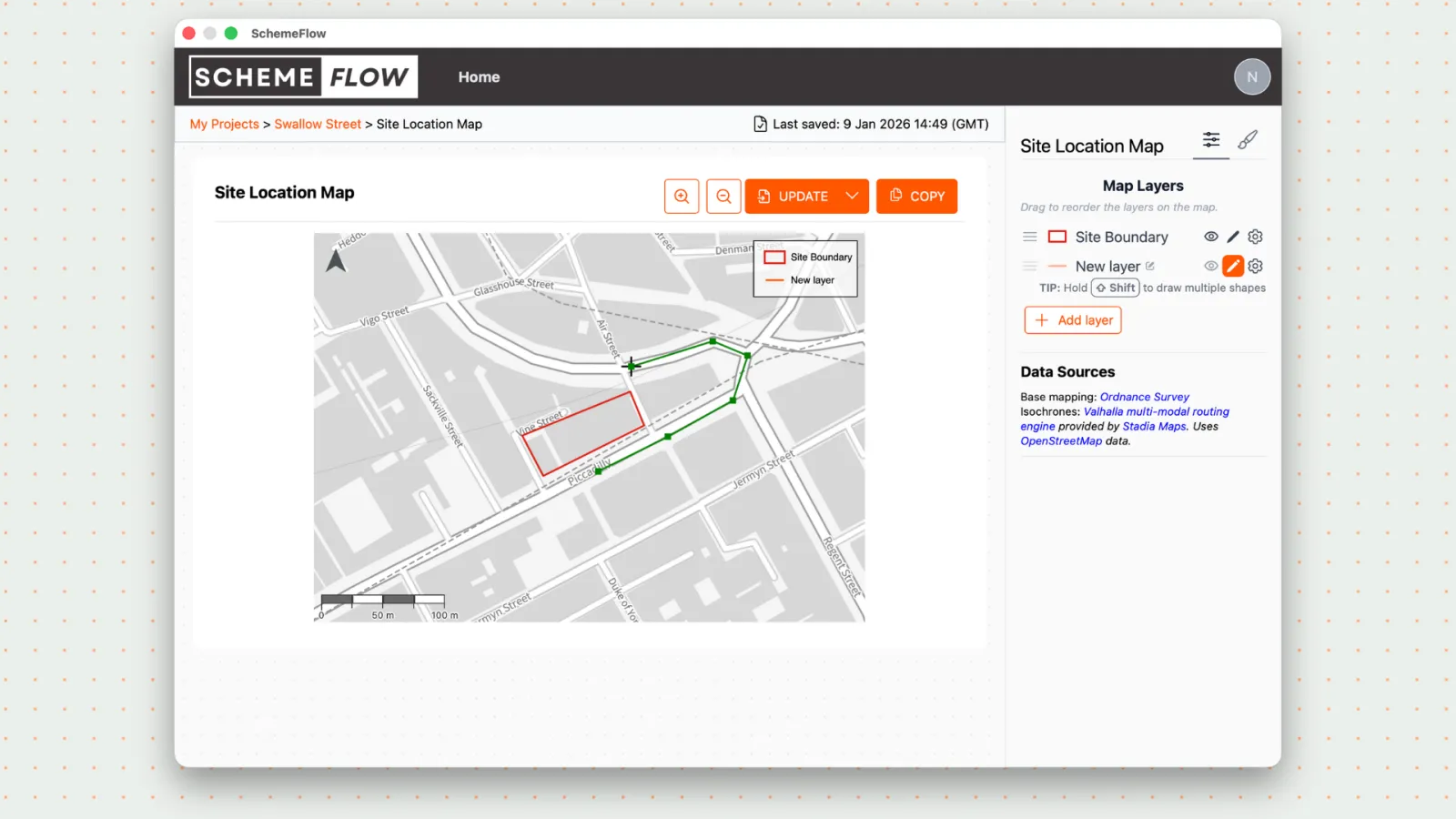
- To edit a line already on the map, right-click the line and adjust its shape as needed.
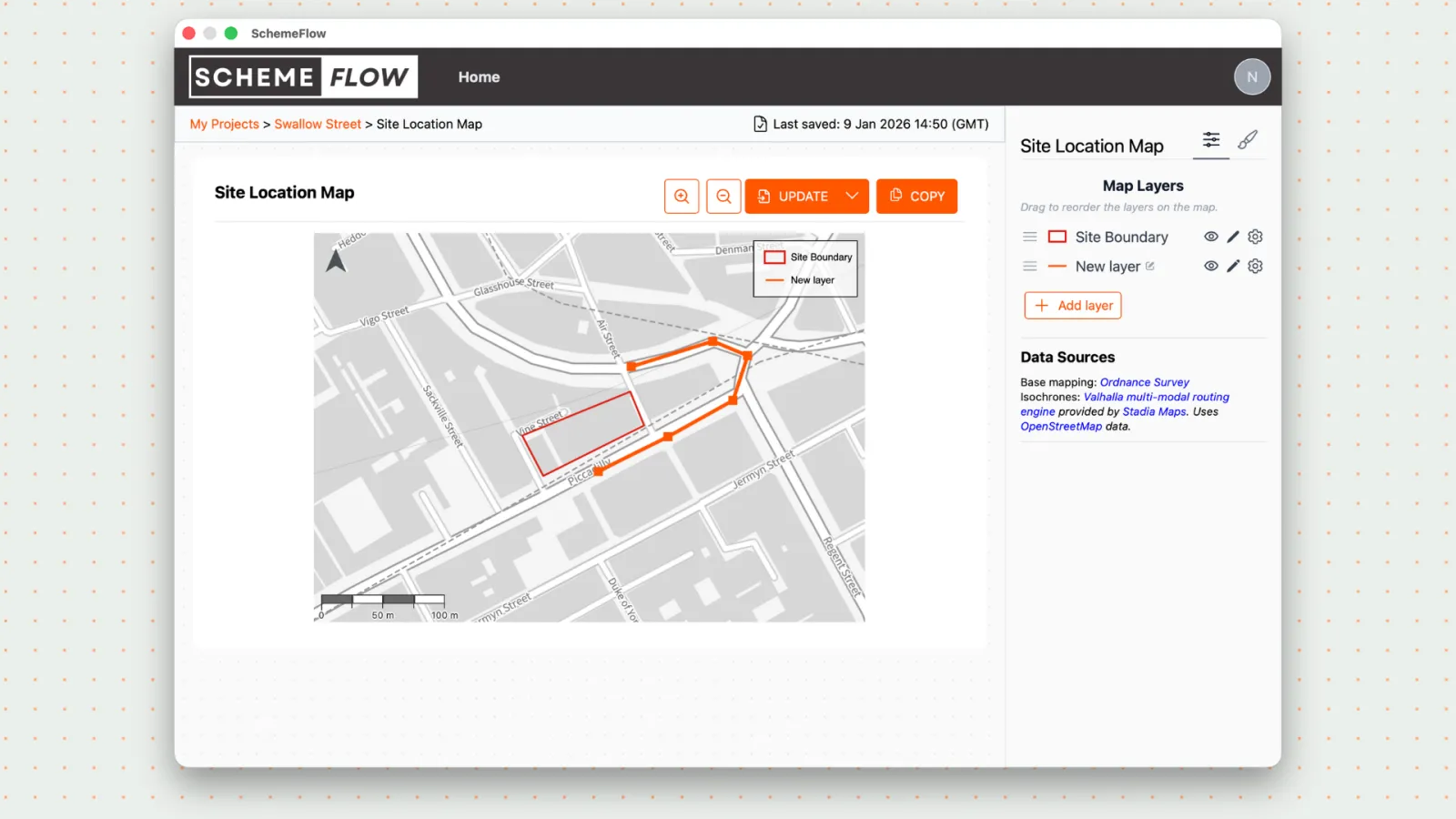
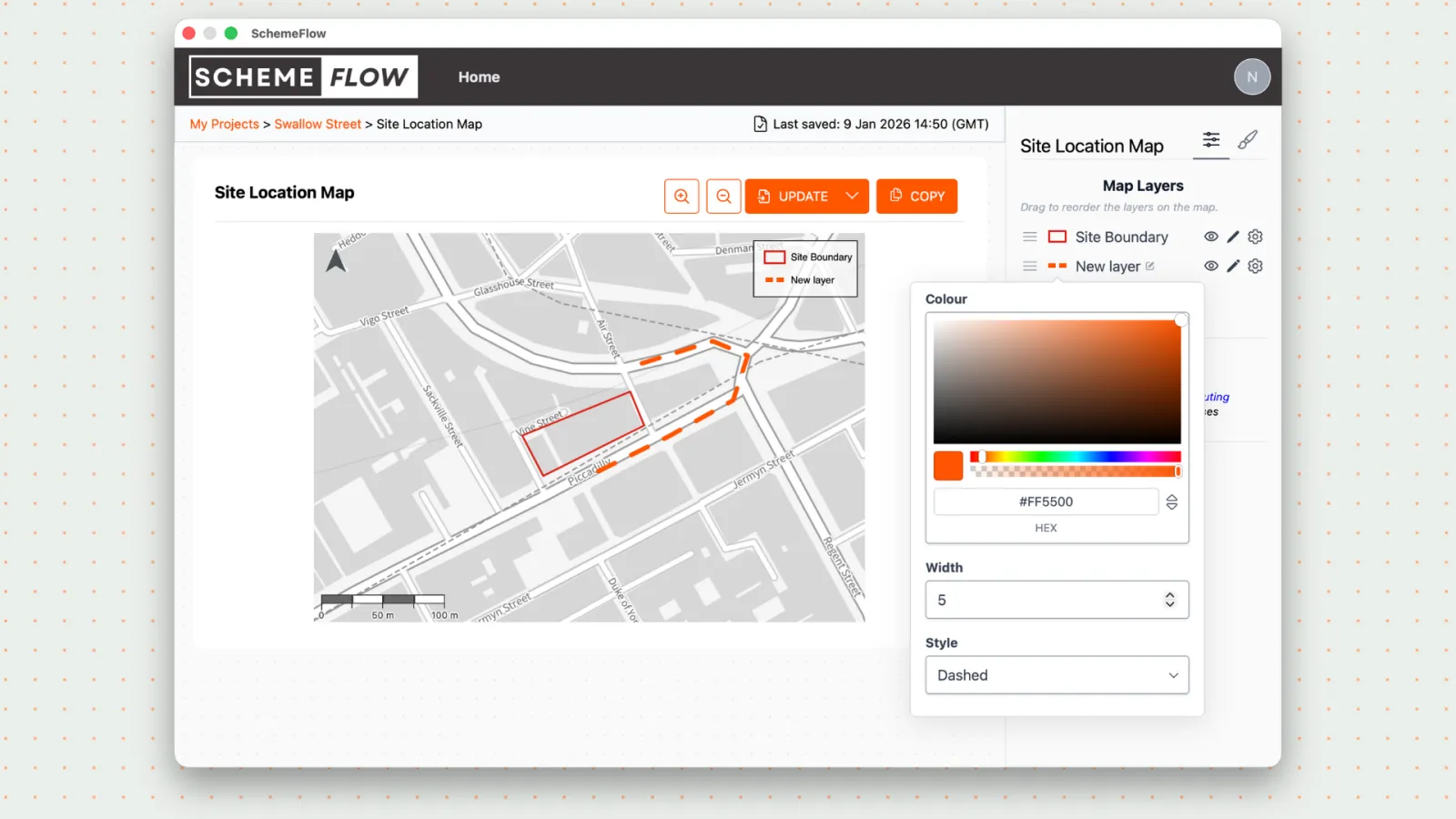
To style a line, click the line on the map. This opens the styling menu, where you can:
- Change the color
- Adjust the line width
- Select the line style (e.g. solid, dashed)
- To remove a line or delete the entire line layer, click the Cog icon.
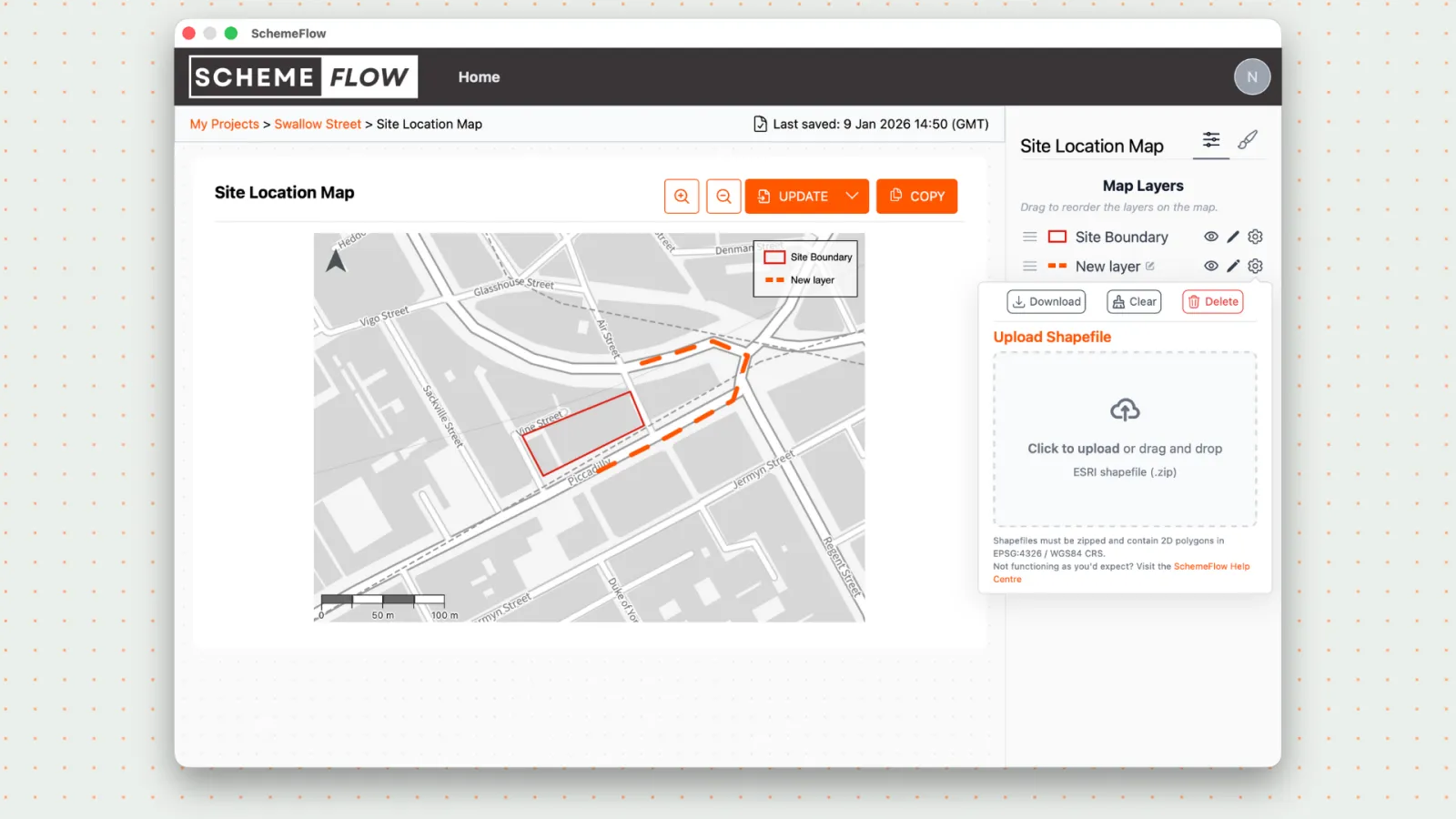
When you're ready, click Update to insert the map into the document.
To save the line layer, click the Paint Brush icon and select Company Styles.
Notes
- Line styling applies to all lines within the same layer.
- Changes are not applied to the document until Update is clicked.