
Site Boundary Style
Edit the color of your site boundary.
Steps
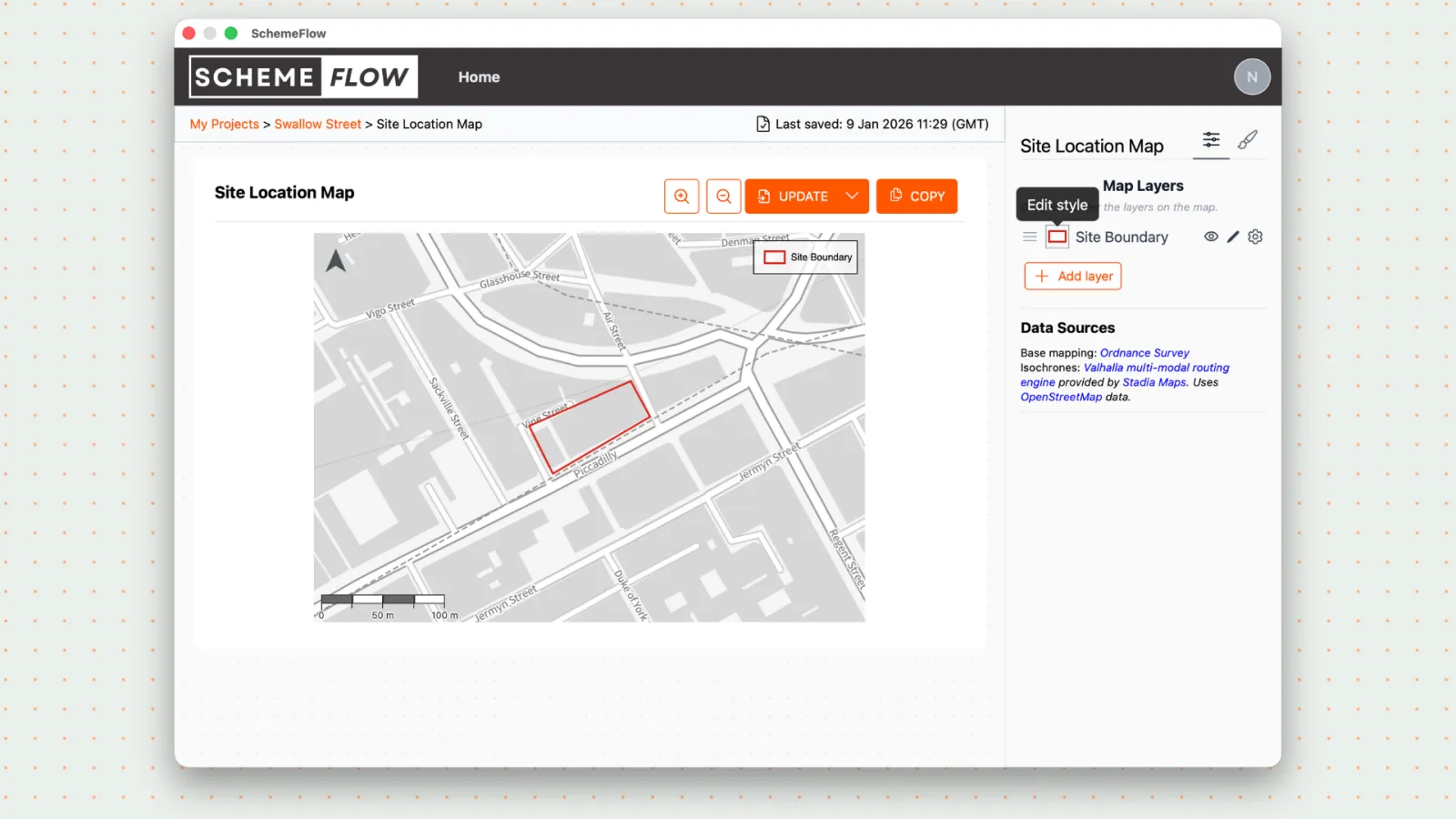
- Click the Site Boundary icon to open the boundary styling options.
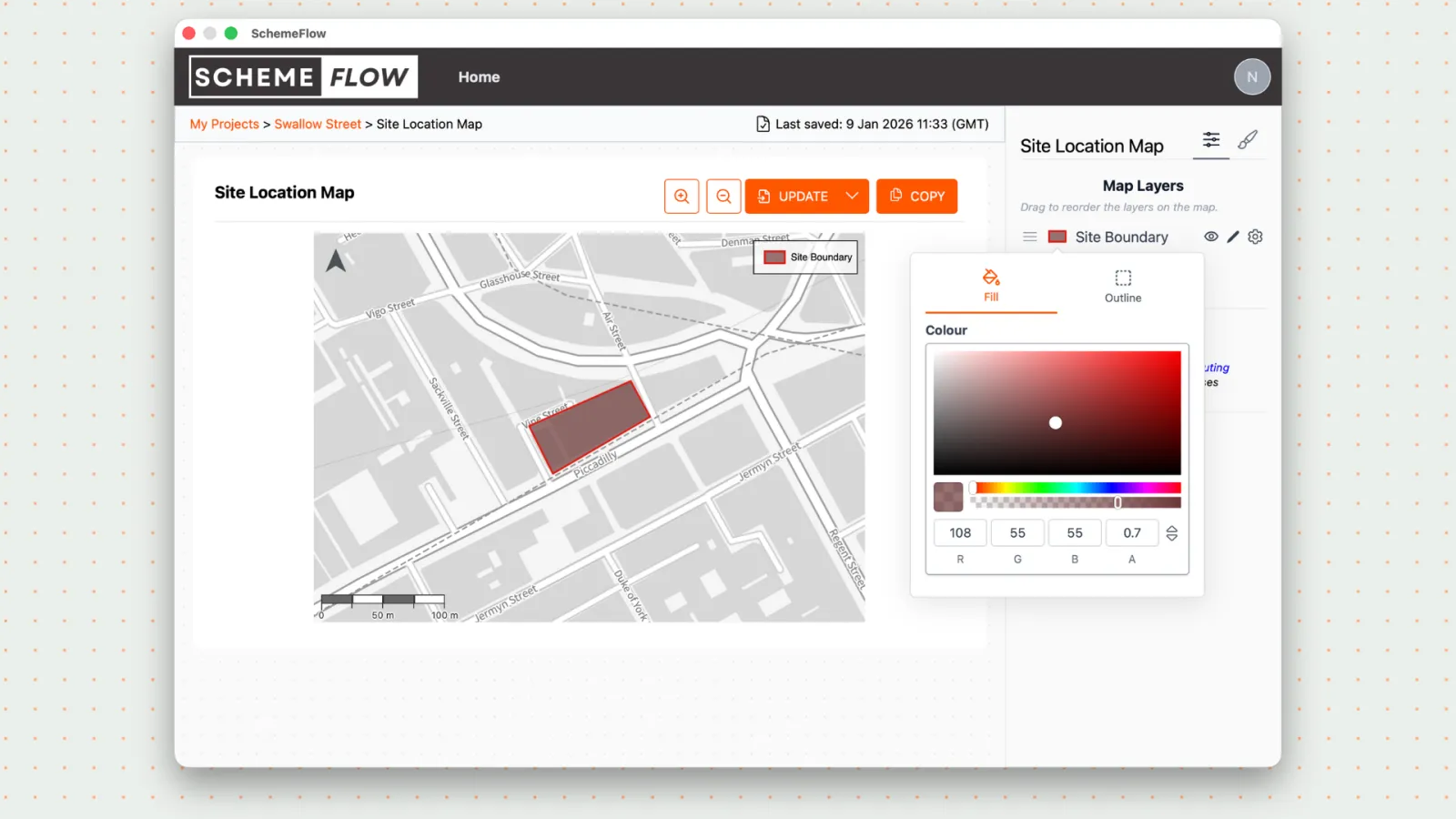
Use the Fill settings to style the boundary:
- Choose a fill color
- Click the arrow next to the hex value to edit the RGB values
- Adjust the A value to control the fill opacity
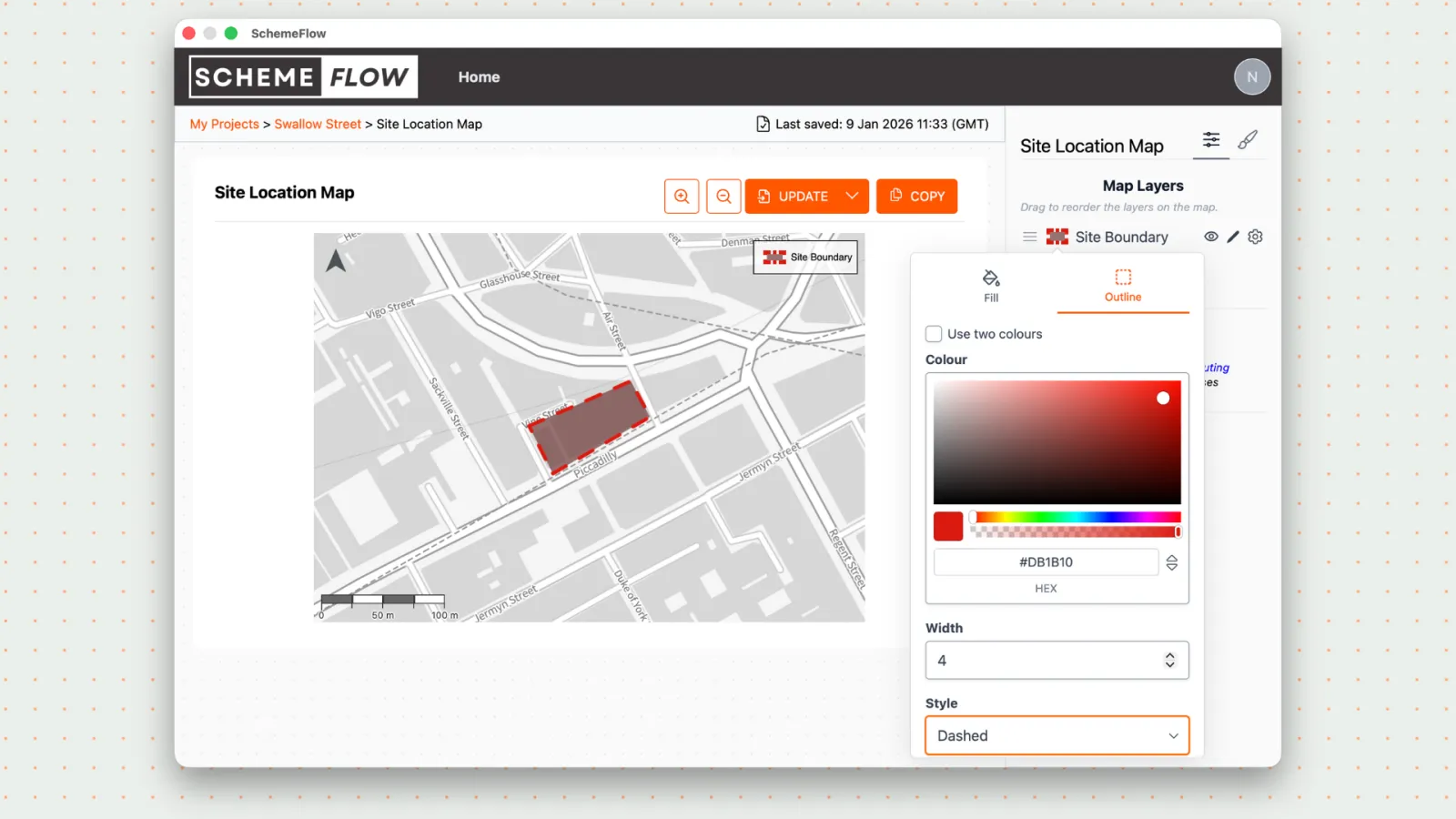
Click Outline to customize the boundary outline, including:
- Color
- Line width
- Line style
To save the new site boundary style, click the Paint Brush icon and then Company Styles.
Click Update to insert the styled site boundary into your report.
Notes
- Changes are not applied to the document until Update is clicked.