
SchemeFlow Word Add-in Enterprise Deployment
This guide provides instructions for deploying the SchemeFlow Word add-in across an enterprise. Two deployment approaches are available:
- User-managed — End users install the add-in themselves from the Microsoft Marketplace.
- Admin-managed — Microsoft 365 administrators deploy the add-in to end users.
User-managed installation
WARNING
Users can only self-install if this capability is enabled in the Microsoft 365 admin center. Your administrator can reference Microsoft's guide on managing Office add-ins to enable this setting, or alternatively use the admin-managed approach below.
To install independently, users should follow the steps in Installing the Word Add-in.
Admin-managed installation
Administrators must configure the deployment in the Microsoft 365 admin center:
- Sign in to Microsoft 365 admin center.
- Select … Show all, then Settings > Integrated apps.
- Select the Add-ins link.
- Select Deploy Add-in.
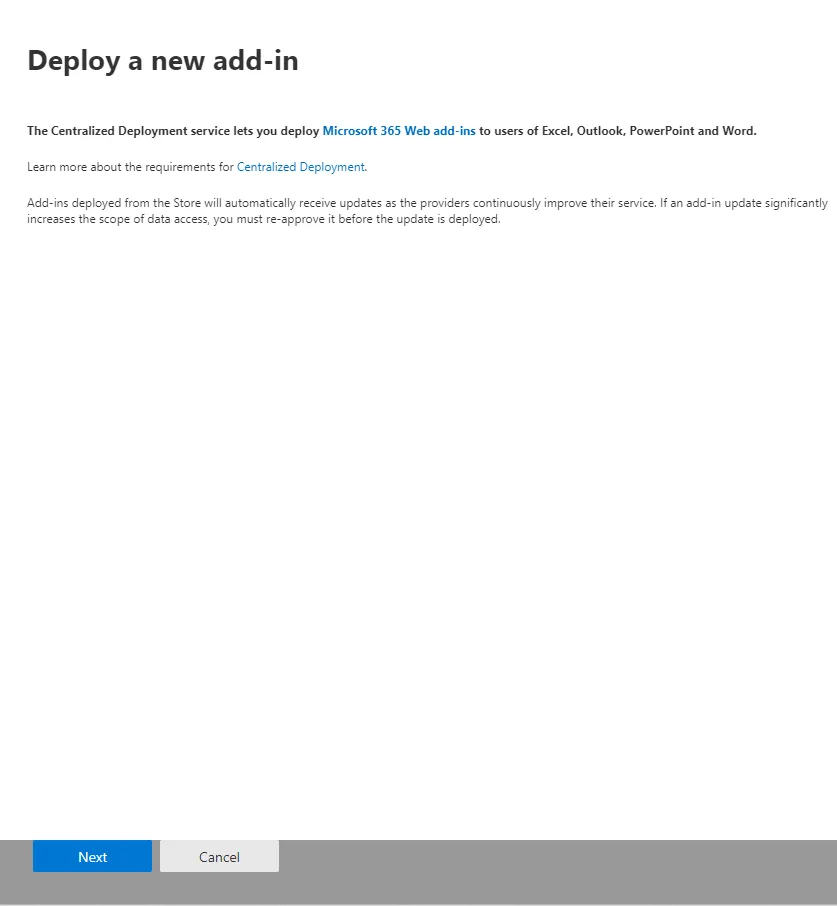
- Select Next on the deployment wizard.
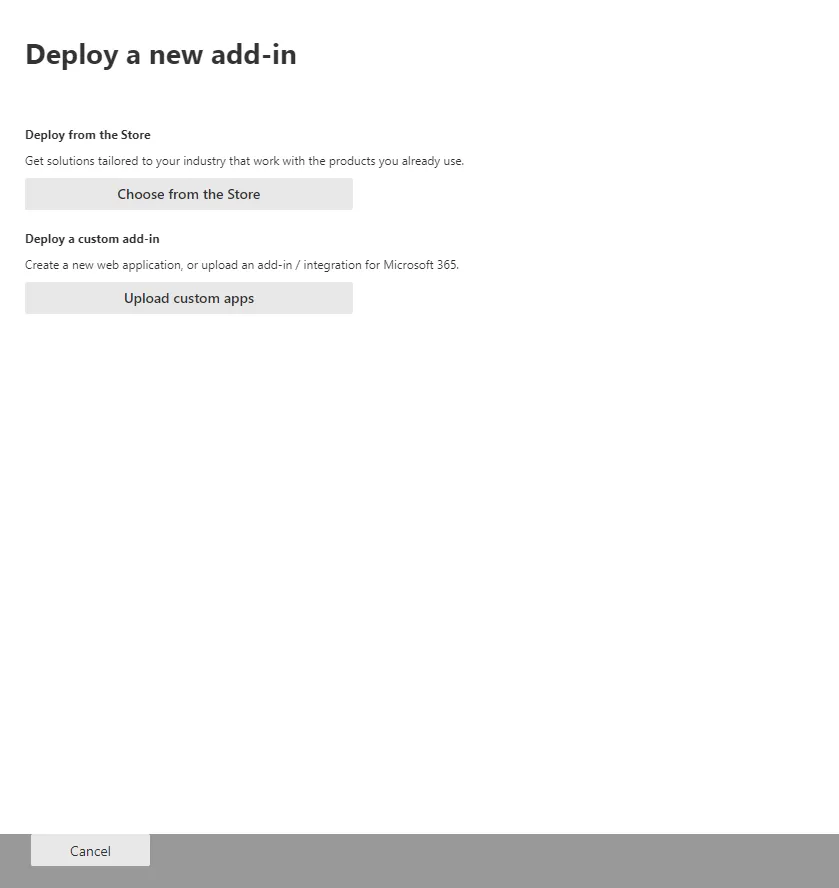
- Select Choose from the Store.
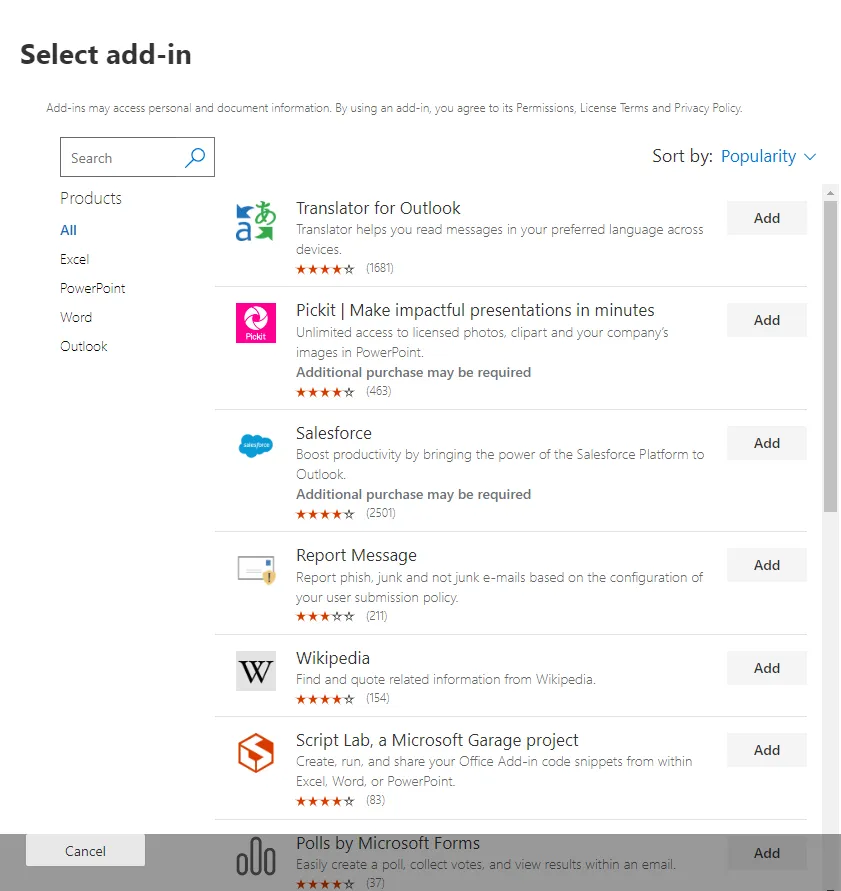
- Search for SchemeFlow US (US customers) or SchemeFlow (UK customers).
- Find the appropriate add-in and click Add.
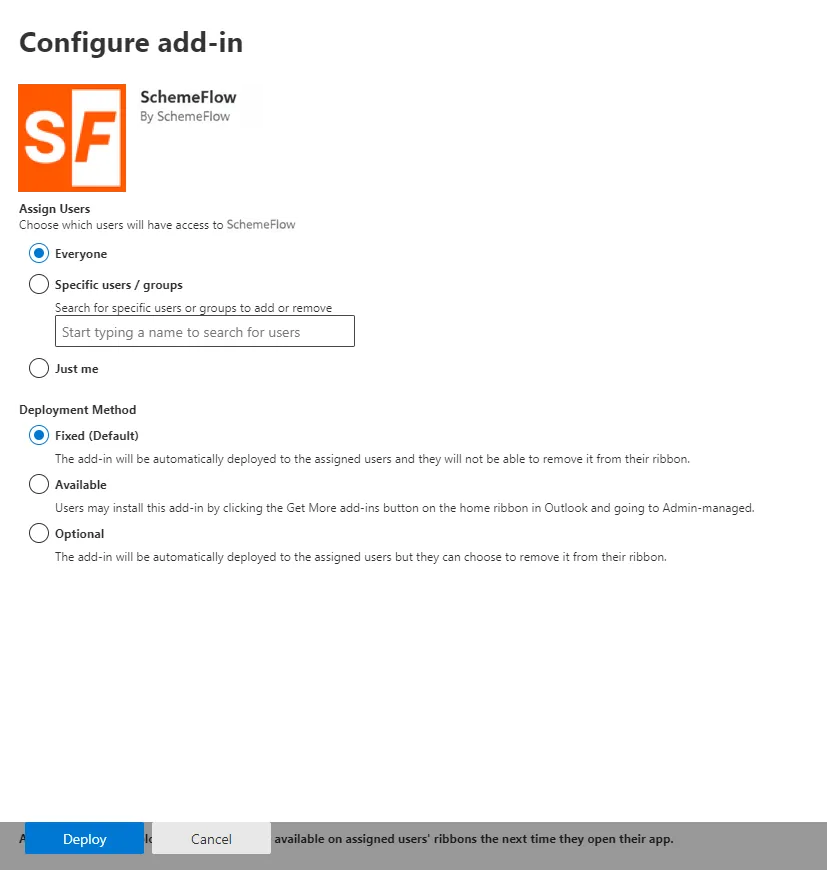
- Specify deployment scope: Everyone, Specific users/groups, or Just me.
- Click Deploy.
- A green checkmark confirms successful deployment.
INFO
Users may need to relaunch Office applications to see the add-in. Office add-ins can take 24–72 hours to appear on the ribbon.
INFO
Alternative deployment methods exist, including manifest file deployment. Contact [email protected] for additional options.