
Scale Bar
Add, remove, or adjust the scale bar on your map.
Steps
Click the Paint Brush icon to open Styles.
Select Scale Bar.
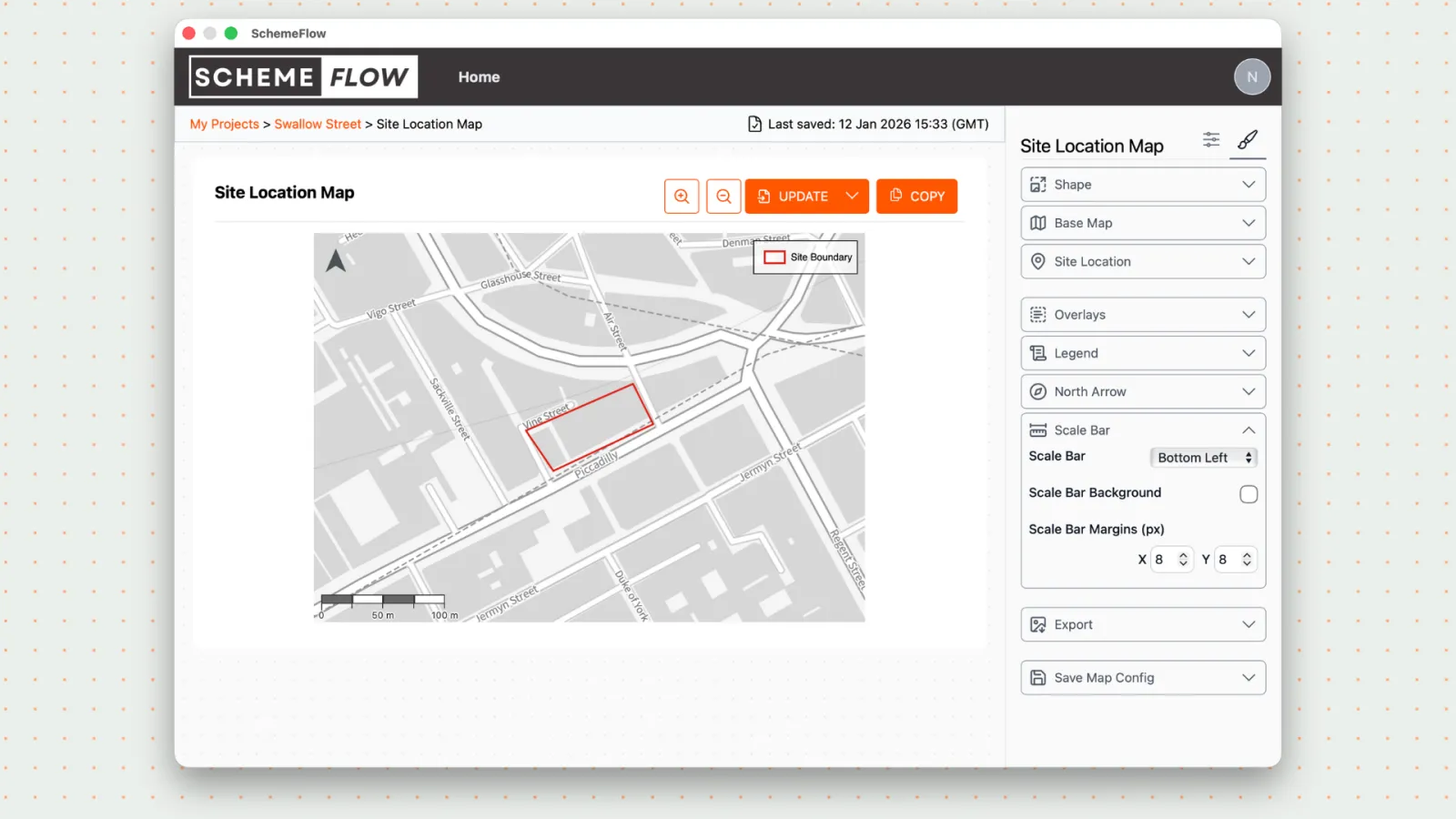
Update the scale bar settings as needed:
- Change the position on the map
- Add or remove a background
- Adjust the margin
- Remove the scale bar entirely
Click Company Styles to save the scale bar for this map.
Click Update to apply the changes to your document.
Notes
- Removing the scale bar does not affect other map elements.
- Changes will not appear in the document until Update is clicked.